

Why an Amortization Schedule Calculator in Excel Is Worth Building
An amortization schedule calculator Excel template is one of the most practical personal finance tools you can build — and it takes less time than you might think.
Quick answer: How to create an amortization schedule calculator in Excel:
- Set up your inputs — loan amount, annual interest rate, loan term (years), and payment frequency
- Calculate your payment — use
=PMT(rate/12, term*12, -loanAmount) - Split each payment — use
=IPMT(...)for interest and=PPMT(...)for principal - Track your balance — subtract principal paid from the previous period’s balance
- Add an extra payments column — to model faster payoff scenarios
- Repeat for every period — copy formulas down for the full loan term
The result is a row-by-row breakdown of every payment, showing exactly how much goes to interest versus principal — and your remaining balance after each one.
Here is why this matters: most people assume that halfway through a loan, they have paid off roughly half the principal. That is rarely true. Early payments are weighted heavily toward interest. A 30-year mortgage at 6% on a $200,000 loan can cost over $100,000 in total interest — and most of that hits in the first decade.
Excel gives you a way to see all of this clearly, model extra payments, and make smarter decisions — all offline, all in your control.
Key terms for amortization schedule calculator excel:
- amortization schedule with extra payments
- amortization schedule with balloon payment
- amortization schedule with fixed monthly payment
Understanding the Mechanics of Amortization
Before we dive into the cells and formulas, we need to understand what is actually happening behind the scenes of an Amortization Schedule Calculator Principal vs Interest.
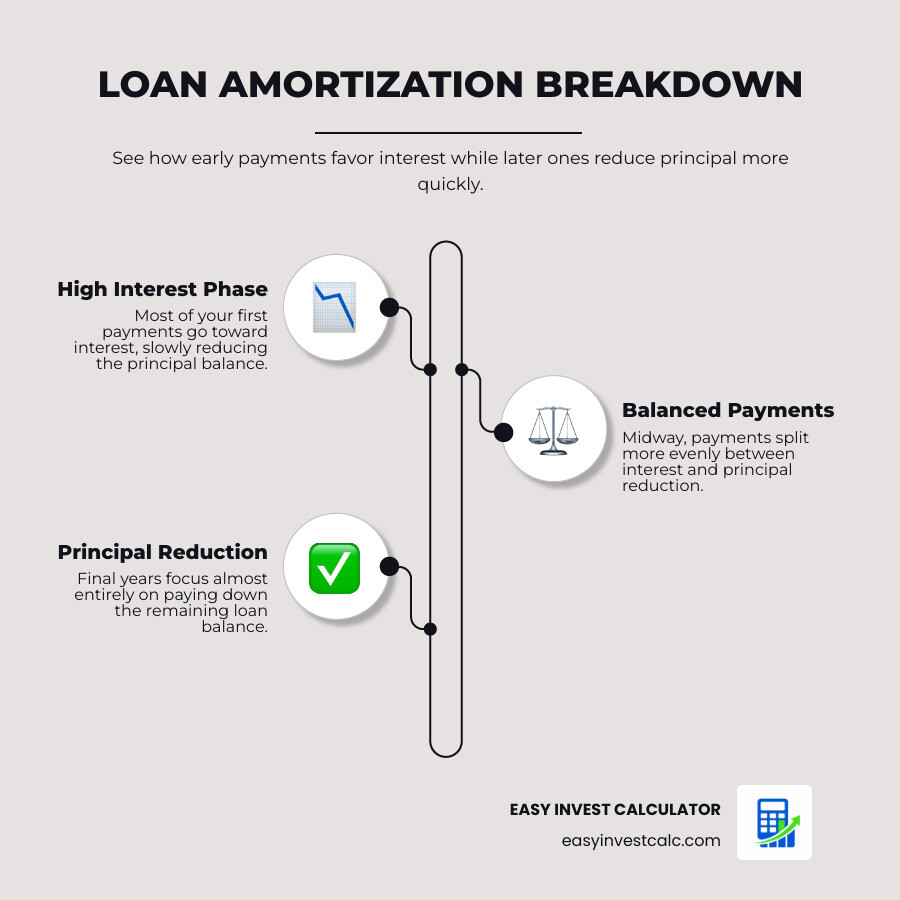
In finance, “amortization” is just a fancy word for killing off a debt through regular installments. But there is a strategy to how banks structure these installments. They generally want their interest upfront. This is why, in the early years of a 30-year mortgage, your principal reduction feels like it’s moving at a snail’s pace.
Principal Reduction vs. Interest Allocation
Every time you make a payment on a fixed-rate loan, that money is split into two buckets:
- The Interest Bucket: This is the “rent” you pay to the bank for using their money. It is calculated based on your current remaining balance.
- The Principal Bucket: This is the actual amount that reduces your debt.
As your balance goes down, the “rent” (interest) for the next month also goes down. Since your total payment remains the same, more of your money starts flowing into the principal bucket. This shift is the “magic” of The Ultimate Guide to Fixed Rate Amortization. By May 2026, with interest rates remaining a hot topic for homeowners, understanding this curve is more important than ever.
According to objective research on loan structures from the Consumer Financial Protection Bureau, an amortization schedule is essentially a roadmap that shows you exactly when that “tipping point” occurs — the moment you start paying more toward your house than toward the bank’s profit.
How to Build an Amortization Schedule Calculator Excel Template
Building your own amortization schedule calculator excel allows for a level of customization that online tools often lack. You can save it, use it offline, and tweak it whenever you want to see “what if” scenarios.
To start, you need to organize your spreadsheet into two main areas: the Input Section and the Schedule Section.
Essential Inputs for Your Calculator
We recommend placing these in the top left of your sheet (Cells A1 through B5):
- Loan Principal: The total amount you are borrowing (e.g., $300,000).
- Annual Interest Rate: Your APR (e.g., 6.5%).
- Loan Term: Usually expressed in years (e.g., 30, 15, or 5).
- Payment Frequency: How often you pay (12 for monthly, 26 for bi-weekly).
- Start Date: When your first payment is due.
Whether you are building a mortgage tool or an Auto Amortization Schedule, these inputs are the DNA of your calculator.
Step-by-Step Formula Implementation
Now for the fun part: the math. Excel has built-in “financial functions” that do the heavy lifting for us.
Calculating the Total Payment (PMT):
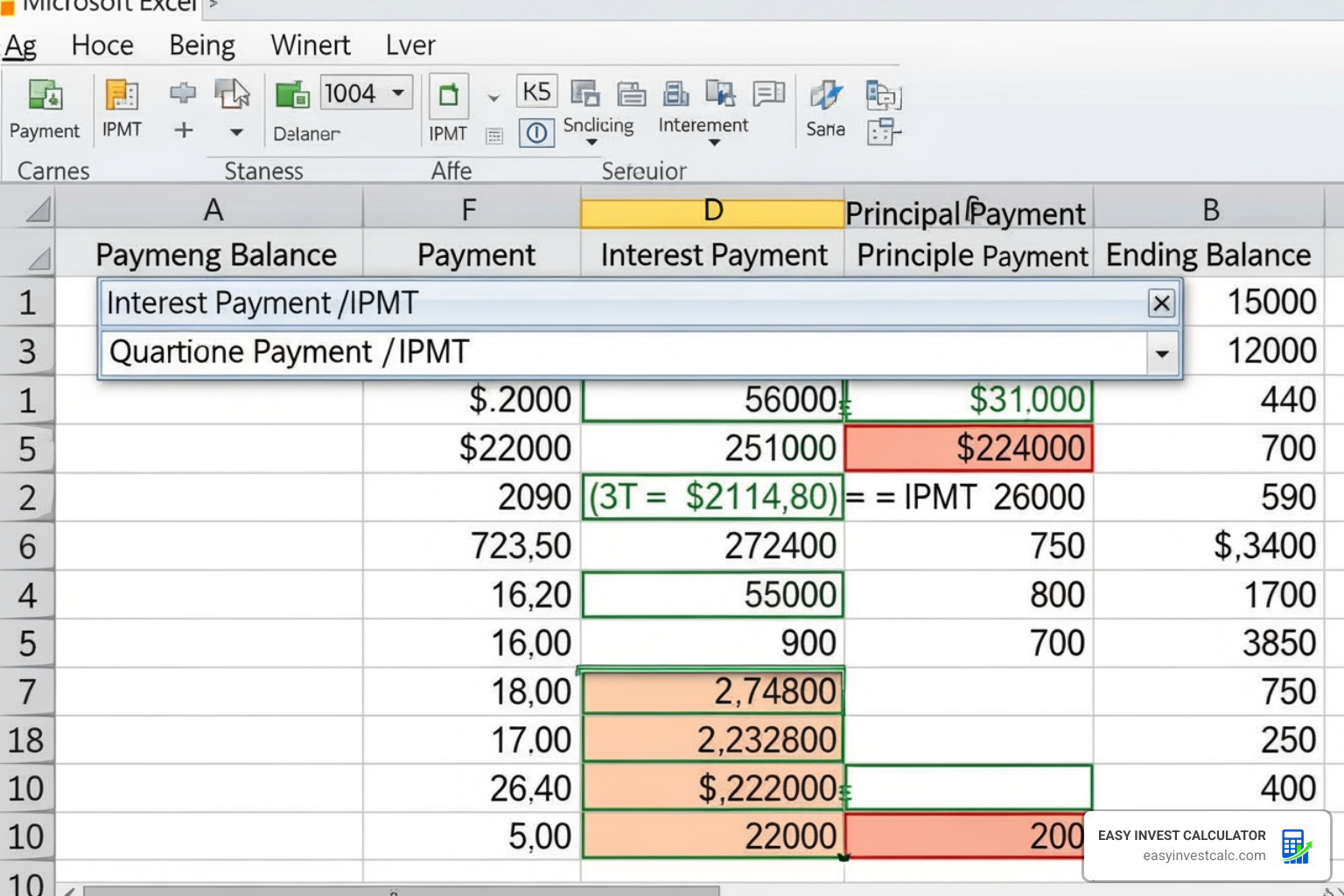
In a cell, type:=PMT(Interest_Rate/Frequency, Term*Frequency, -Principal)
Note: We use a negative sign before the principal so the result shows as a positive number.Calculating the Interest Portion (IPMT):
For any given period (like month 1), use:=IPMT(Rate/12, Period_Number, Total_Periods, -Principal)
This tells you exactly how much interest you are paying in that specific month.Calculating the Principal Portion (PPMT):
Similarly:=PPMT(Rate/12, Period_Number, Total_Periods, -Principal)
This shows how much of that month’s payment actually went toward your balance.The SEQUENCE Function:
If you are using a modern version of Excel in 2026, you can use=SEQUENCE(Term*Frequency)to automatically generate all your month numbers (1 to 360 for a 30-year loan) in one go. This makes your amortization schedule calculator excel dynamic and easy to update.
Customizing for Extra Payments and Payment Frequencies
The real power of a custom amortization schedule calculator excel is modeling prepayments. Making even small extra payments can have a massive impact on your total interest and loan duration.
Customizing Your Amortization Schedule Calculator Excel for Extra Payments
To add this feature, simply add an “Extra Payment” column next to your scheduled payment. Your “Remaining Balance” formula should then look like this:
=Previous_Balance - (Scheduled_Principal + Extra_Payment)
According to objective research on debt repayment strategies, an extra principal payment of just $3,000 can save between $90 and $180 in interest for each year that payment was made ahead of schedule. Over a 30-year loan, those savings compound. You can track this in your sheet by creating a “Cumulative Interest Saved” cell.
For more details on how this works, check out our guide on the Amortization Schedule with Extra Payments.
Handling Bi-Weekly and Weekly Schedules
Many borrowers switch to bi-weekly payments to save money. Why? Because there are 52 weeks in a year, which means 26 bi-weekly payments. This effectively results in making 13 full monthly payments every year instead of 12.
| Frequency | Payments Per Year | Impact on a $1M Loan @ 6% |
|---|---|---|
| Monthly | 12 | Standard interest trajectory |
| Bi-Weekly | 26 | Saves ~$35 per year in “timing” interest alone |
| Weekly | 52 | Maximizes principal reduction speed |
When setting this up in Excel, remember to divide your annual interest rate by your frequency (e.g., Rate/26 for bi-weekly) and multiply your years by that same frequency for the total number of periods.
Troubleshooting Rounding and Negative Amortization
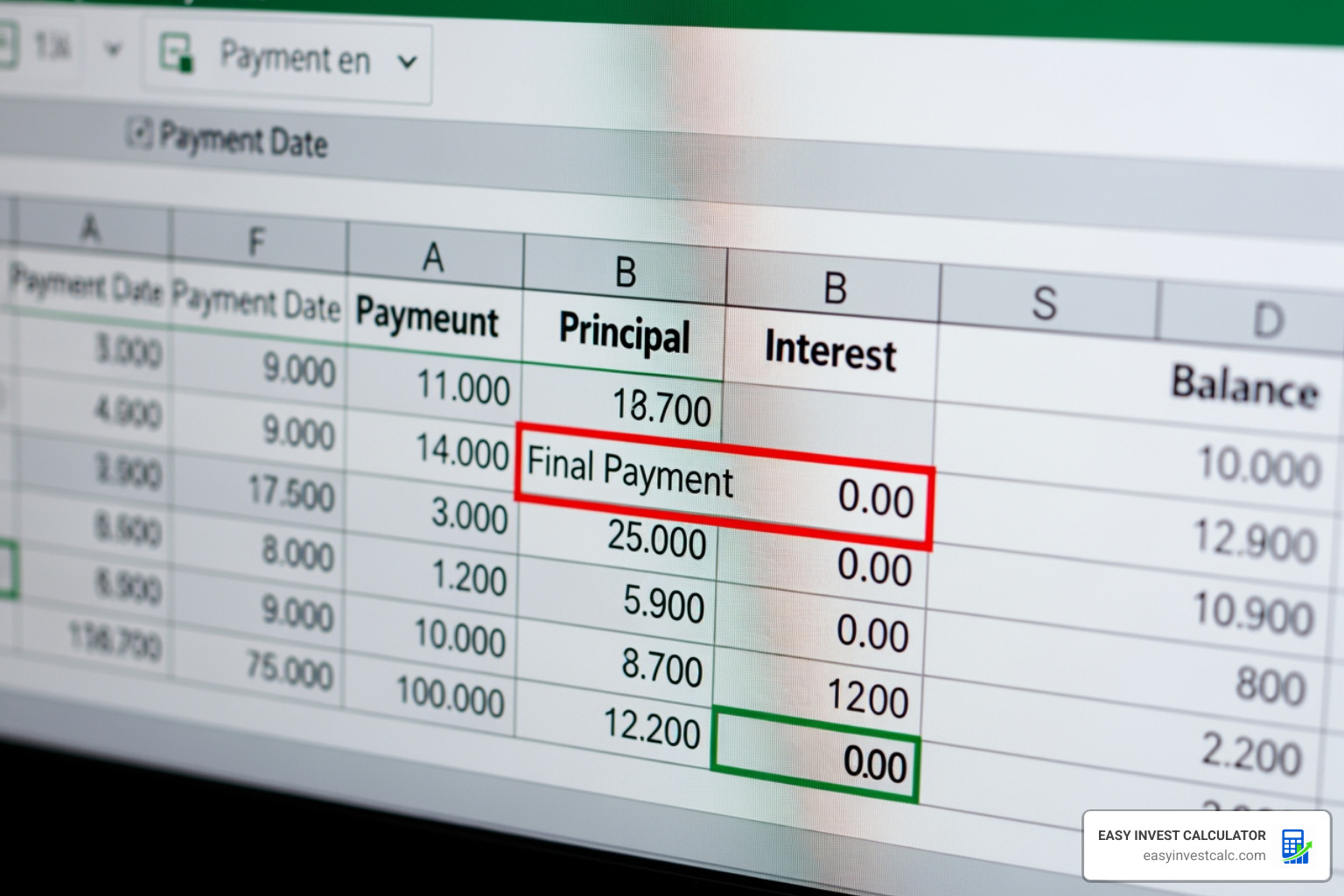
No calculator is perfect without addressing the “edge cases.” If you’ve ever looked at a bank statement and noticed the final payment is off by a few cents, you’ve encountered rounding adjustments.
Common Errors in an Amortization Schedule Calculator Excel
- The “Penny” Problem: Because Excel calculates to many decimal places, but we pay in cents, your final balance might not hit exactly zero.
- Fix: In your very last row, adjust the payment amount to be:
=Previous_Balance + Interest_of_Last_Month.
- Fix: In your very last row, adjust the payment amount to be:
- Negative Amortization: This happens if your payment is smaller than the interest owed. The unpaid interest gets added to the principal, and your debt actually grows. This is common in some Amortization Schedule with Balloon Payment scenarios or “interest-only” periods.
- Circular References: If your formulas start chasing their own tails, check that your “Remaining Balance” isn’t accidentally trying to calculate the interest that it is supposed to be based on.
Best Practices and Professional Templates for 2026
If you don’t want to build one from scratch, there are incredible resources available. Millions of users rely on professional loan amortization templates for their reliability and offline accessibility.
At Easy Invest Calculator, we believe in “formula integrity.” Here are our top tips for a professional-grade amortization schedule calculator excel:
- Data Validation: Use drop-down menus for “Payment Frequency” to prevent typing errors.
- Workbook Protection: Once your formulas are set, lock those cells! You don’t want to accidentally delete a complex PPMT formula while entering a payment.
- Visual Aids: Add a chart showing the “Principal vs. Interest” crossover point. It’s highly motivating to see the principal line finally climb above the interest line.
- Mobile vs. Desktop: While building happens on a PC, ensure your file is saved in a format (like .xlsx) that you can view on your phone when you are at the dealership checking an Auto Amortization Schedule.
For those specifically looking at vehicle financing, we’ve put together The Car Buyer’s Guide to Auto Amortization Schedules to help you navigate the specific quirks of car loans.
Frequently Asked Questions about Amortization
How do I handle a variable interest rate in Excel?
To handle variable rates, you can’t use a single PMT formula for the whole sheet. Instead, you need a “Rate” column in your schedule. Each row’s interest will calculate based on that specific row’s rate. If the rate changes in month 24, you simply update the rate in that cell, and the remaining schedule will recalculate.
Can I use this for credit card debt?
Technically, yes, but credit cards are revolving debt, not amortized debt. They don’t have a fixed “end date” unless you stop spending and commit to a fixed monthly payment. If you do that, then an amortization schedule calculator excel is a fantastic way to plan your “Debt Free Date.”
What is the difference between reducing term and reducing payment?
When you make extra payments, most lenders automatically “reduce the term” (you pay off the loan faster). “Reducing the payment” (also called re-casting) requires the bank to keep the original end date but lower your monthly obligation because the principal is now lower. Excel is the perfect place to compare these two strategies.
Conclusion
Mastering your debt starts with seeing it for what it really is: a math problem. By building or using an amortization schedule calculator excel, you move from being a passive payer to an active strategist. Whether you are looking to shave years off your mortgage or simply want to understand where your money goes each month, these tools provide the clarity needed for effortless financial planning.
We invite you to use our resources to take the guesswork out of your finances. Ready to see the numbers for yourself? Calculate your next loan today and start your journey toward debt freedom.